What you need
Use a compatible iOS VPN client and your personal subscription link from CVPN account or the Telegram bot. Keep the URL private.
Choose your app
Connect using Happ, v2rayTun or INCY. Copy your private CVPN link and select an app: the localized interface illustrations below show the state before a subscription is added.
Open your CVPN account → device setup, or the CVPN Telegram bot → Connect VPN. Copy your private subscription link and never publish it.
Two ways to import
If your link is already copied, open the app and use Import from clipboard / Paste from clipboard when available. There is no need to type the URL.
If your version has no clipboard action, choose Add subscription or Import URL, paste your link into the field and save.
Connect in three steps
Happ
Happ accepts compatible configurations and subscriptions. Import from clipboard if your link is already copied, or add the subscription manually using its URL.
- Install the app
Install apps only from official app stores or developer download pages.
- Import your CVPN link
Import from clipboard or paste the URL into the subscription form. Refresh the server list if needed.
- Choose a server and connect
Select a compatible profile and connect. Approve the system VPN permission prompt in iOS or Android.
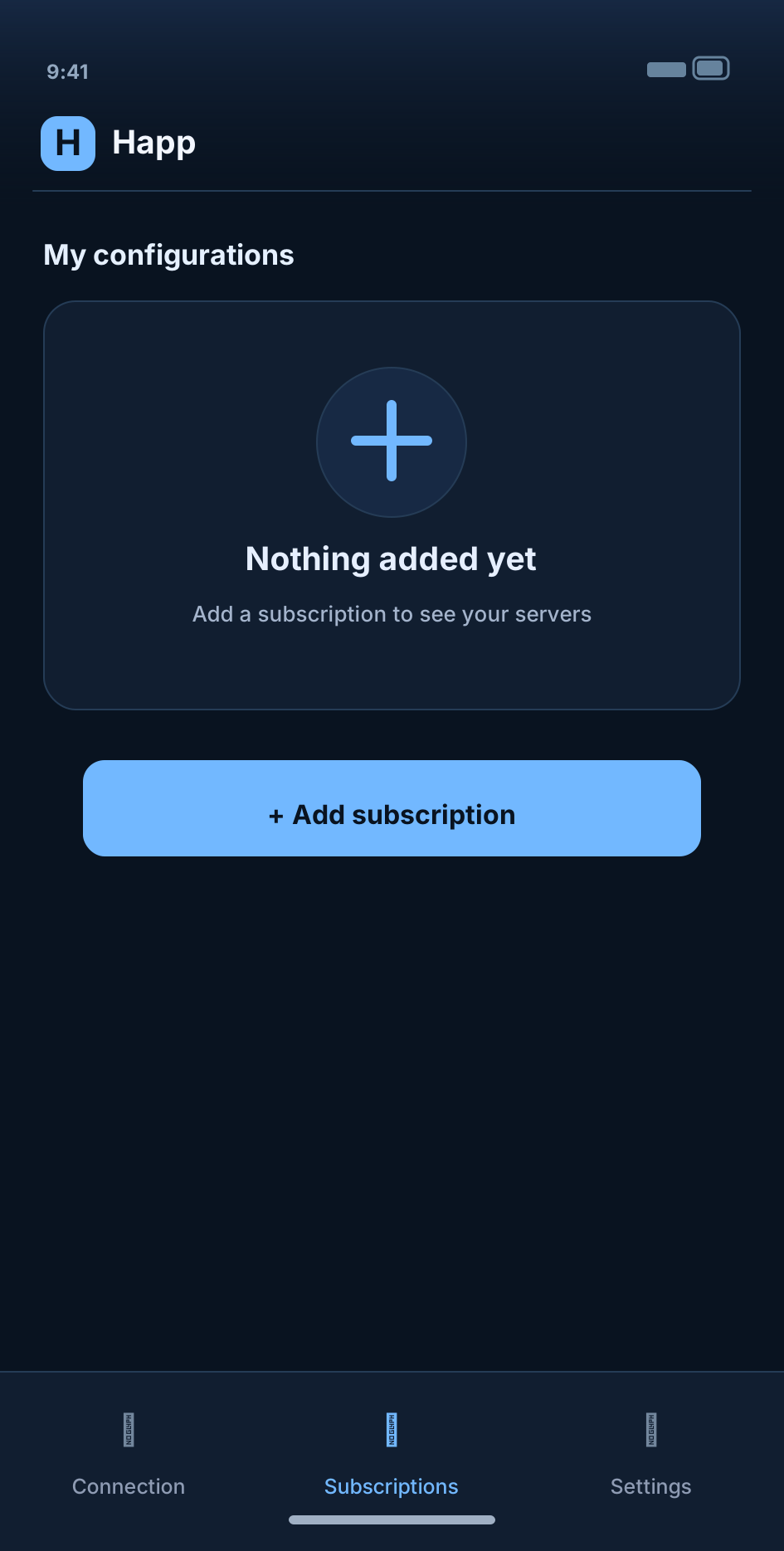
What the app looks like
Select a screen. Examples show the app before your CVPN link is added.
v2rayTun
In v2rayTun, import the copied link from clipboard or use the add configuration / subscription URL flow. Refresh your list and select a server.
- Install the app
Install apps only from official app stores or developer download pages.
- Import your CVPN link
Import from clipboard or paste the URL into the subscription form. Refresh the server list if needed.
- Choose a server and connect
Select a compatible profile and connect. Approve the system VPN permission prompt in iOS or Android.
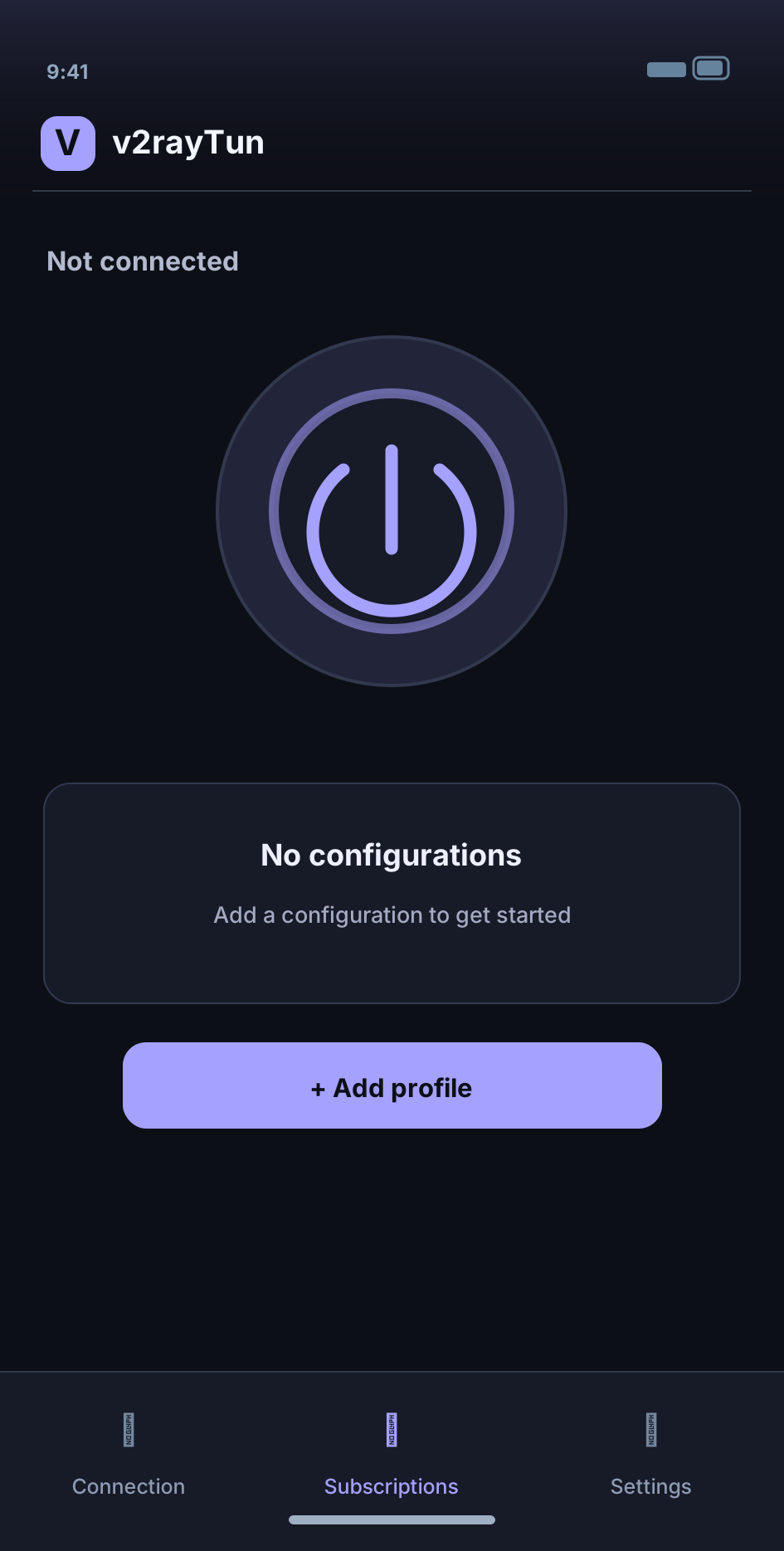
What the app looks like
Select a screen. Examples show the app before your CVPN link is added.
INCY
In INCY, add a compatible subscription using a link or the available import option. After the profiles appear, select a server and connect.
- Install the app
Install apps only from official app stores or developer download pages.
- Import your CVPN link
Import from clipboard or paste the URL into the subscription form. Refresh the server list if needed.
- Choose a server and connect
Select a compatible profile and connect. Approve the system VPN permission prompt in iOS or Android.
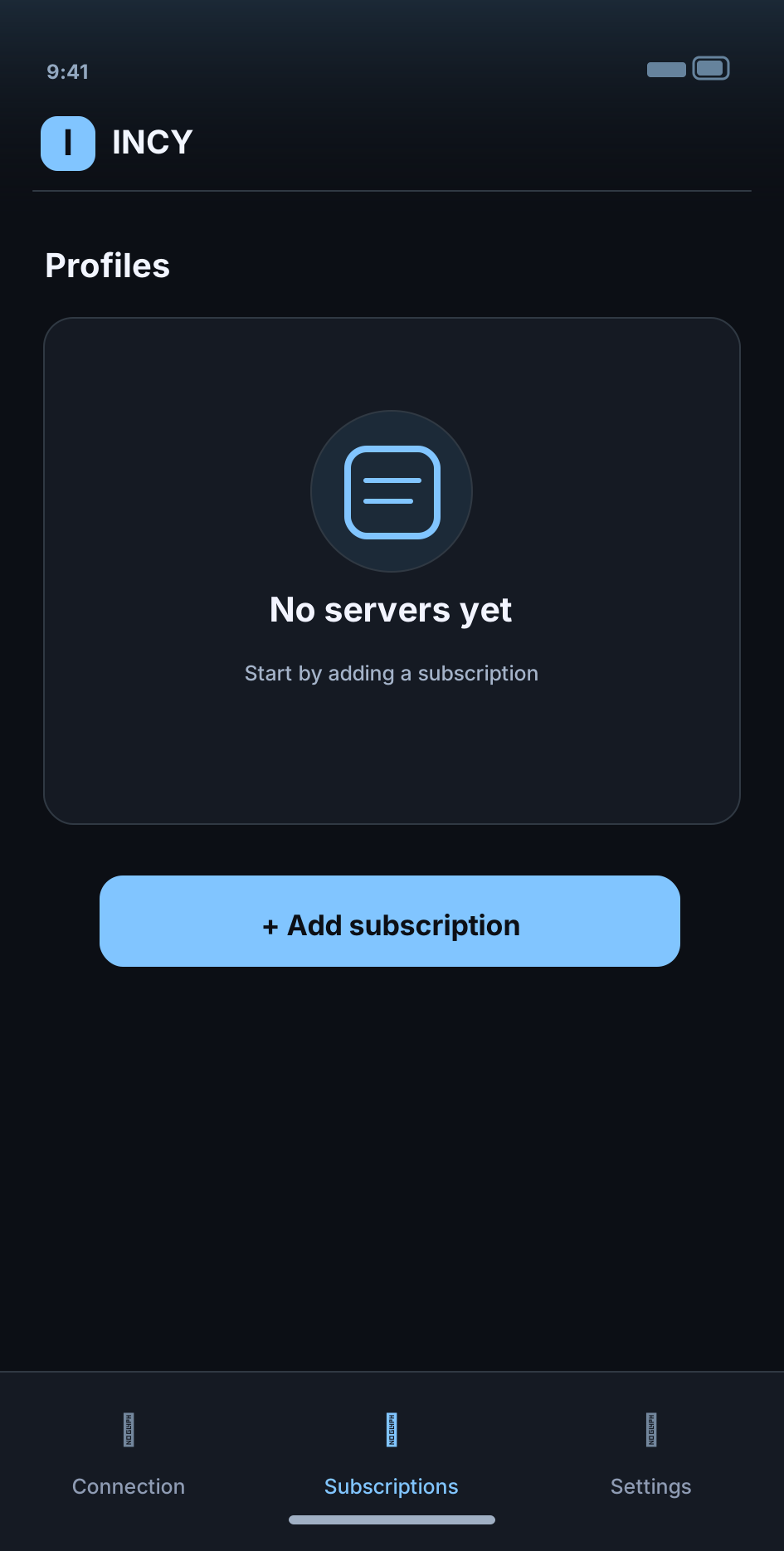
What the app looks like
Select a screen. Examples show the app before your CVPN link is added.
These illustrations explain common steps but are not pixel-exact screenshots of every third-party app version. Never share your /sub/ link, UUID or connection QR code.
A dedicated CVPN app
We are planning a standalone CVPN mobile app with a unified interface and simpler setup. No release date has been announced. For now, Happ, v2rayTun and INCY are supported third-party choices.
If it fails
Check subscription validity, internet without VPN, automatic device time and whether Wi‑Fi or cellular works better. Troubleshooting →
Ready for the next step?
Return to all guides or contact support if you need help.